
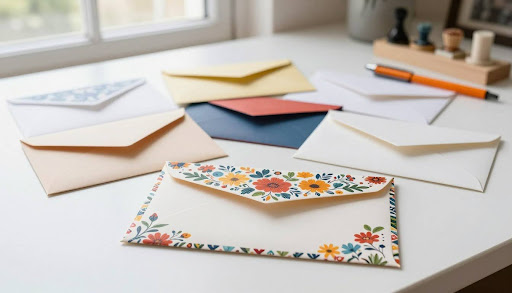
Think of the envelope as the first ad for what’s inside. A smart Envelope Printing Template makes ordinary mail exciting. The right size, layout, and print method speed up delivery and make it feel more special.
This guide helps you create an envelope design that boosts open rates and brand recall. It’s perfect for direct mail, invitations, and everyday notes.
We’ll show you examples for Word, Google Docs, Adobe Illustrator, Adobe InDesign, and Canva. You’ll learn about color, typography, and white space. Plus, how to avoid smudges and jams for sharp, professional-looking envelopes.
We’ll cover #10 business formats, A7 and 5×7 invitation styles, and A4 patterns for home printers. You’ll get a step-by-step guide for creating an envelope template in Word. Plus, tips for printing envelopes with multiple addresses using mail merge.
Finally, we’ll show you how to scale up from templates to professional prints. You’ll learn about dielines, spot color, foil, and quality checks used by experts.
Key Takeaways
- Use an Envelope Printing Template to guide size, layout, and USPS-friendly placement.
- Build an envelope design template that supports brand recall with clear type and ample white space.
- Create custom envelopes in Word, Google Docs, Illustrator, InDesign, or online editors with clean margins and safe areas.
- Follow postal clear zones to speed automation and reduce returns or surcharges.
- Set up an envelope template for printing that avoids smudges, jams, and misalignment on home printers.
- Apply mail merge to print envelopes with multiple addresses at scale without losing quality.
- Move from DIY to professional finishing when you need spot color, foil, or complex dielines.
Why Envelope Design Matters for Open Rates and Brand Recall
In direct mail, the first glance sets the tone. Studies from USPS and the Data & Marketing Association show that a tactile, well-crafted envelope signals relevance and care. This lifts opens and responses. A thoughtful envelope design template or a refined Envelope Printing Template builds trust fast and anchors brand memory.
Visual hierarchy should guide the eye to the addressee, then to a logo or teaser. Keep copy concise, edges clean, and elements balanced. This clarity also helps when learning how to print envelopes at home?, since simple structures feed and print more cleanly.
Psychology of first impressions in direct mail
People judge intent within seconds. A crisp return mark, clear address zones, and a subtle brand color lower friction. The right envelope design template uses contrast and spacing to suggest care, making the piece feel worth opening.
Place the sender identity where it can be seen without crowding the delivery area. Test two or three variants in small runs to learn which cues, colors, and stamps earn more attention.
Matching envelope style to purpose: personal, business, event
Personal notes shine with warmer palettes and legible scripts that read like a real hand. Business mail benefits from clean sans-serifs such as Helvetica or Source Sans, plus a clear logo and return address that match letterhead.
Event invites, like weddings or galas, often favor A7 or 5×7 formats with premium stocks and liners. An Envelope Printing Template helps keep sizing, margins, and logo alignment consistent across runs, whether handled in-house or by a print shop.
Color, typography, and white space best practices
- Use dark text on light stock for strong contrast and postal scanning.
- Keep ample white space around the delivery address to support OCR and barcodes.
- Apply restrained color blocking; anchor with one brand hue and a neutral base.
- Pair a readable sans-serif for addresses with a modest accent face for the brand.
These choices improve clarity and recall while staying within USPS clear zones. They also translate smoothly when you learn how to print envelopes at home?, reducing smudges and misreads. A disciplined envelope design template preserves hierarchy and finish quality, even on desktop devices.
Choosing the Right Envelope Size and Format for Your Project
Choosing the right envelope size depends on what’s inside and how you plan to print it. A clear template helps plan your layout and keeps addresses easy to read. It also helps avoid extra costs from the post office.
Common sizes: #10, A7, 5×7, A2, square, booklet, catalog
The #10 envelope is a workhorse in the U.S. for letters and invoices. Many teams start with a 10 envelope template word to ensure everything fits right.
A7 envelopes are great for 5×7 cards and photos. A2 envelopes fit note cards and thank-you notes. Square envelopes, like 6.5 x 6.5 in, look fancy but might cost more to mail.
Booklet envelopes open on the long side, perfect for brochures. Catalog envelopes open on the short side, great for thicker inserts. Always use a template to keep everything safe.
When to use window vs. non-window envelopes
Window envelopes are best when you print the address on the letter. They help with accuracy and save time. They’re often used for bills and statements.
Non-window envelopes are better for privacy or when you want to show off your design. They’re also good for variable folds where alignment is key. For designs with lots of graphics, a non-window envelope keeps the address and postage areas clear.
Postal regulations that affect design and placement
USPS has rules for envelopes to be machinable. The return address goes in the upper left, and postage in the upper right. Make sure the address area isn’t glossy to help scanners read it.
On a #10 envelope, leave a clear zone for the barcode at the bottom right. This zone should be 4.75 in wide and 0.625 in high from the bottom. Use a template to mark this area and keep it safe from other designs. If you’re using Word, a 10 envelope template word can help set up margins and ensure compliance.
Envelope Printing Template
An Envelope Printing Template is key for clean designs that meet USPS standards. It outlines the artboard, safe areas, and barcode zones. This ensures your design prints correctly and mails on time.
Choose the exact envelope size or an unfolded dieline for custom designs. Add a 0.125 in bleed for color or patterns at the edge. Keep margins wide for scanner readability.
Core guides are for the return address, postage, and delivery block. Use layers for artwork, rules, and postal zones. Lock the guide layer to avoid changes during editing. Save a master file for consistent mailings.
For home use, an envelope template printable a4 can include cut-and-fold panels and glue tabs. This format fits standard A4 sheets and keeps panel sizes right. Clear labels on panels help avoid assembly errors.
In Microsoft tools, an envelope printing template word means custom page sizes and text boxes for addresses. Use styles for fonts that scan well, like Arial or Calibri. Anchor logos in safe areas.
In Adobe Illustrator or InDesign, use layers for dielines and postal zones. Turn on rulers and smart guides for precise placement.
Tip: Keep barcodes and address blocks clear and simple. Avoid overprinting textures where sorting machines need to read. These choices help keep delivery fast and your design intact.
Whether you pick a production file or an envelope template printable a4, keep bleeds, margins, and safe zones consistent. Name layers clearly, lock non-printing guides, and export with trim and bleed marks for a professional press. This way, your Envelope Printing Template connects design intent with postal reality, from a quick draft to a press-ready artboard.
Essential Elements of a High-Impact Envelope Layout
An effective envelope design template can make someone take action with just a glance. It’s all about clear hierarchy, keeping important zones safe, and balancing style with function. These choices help your envelope stand out while staying ready for USPS, whether you’re sending a few or many.
Return address placement and branding
Put the return address in the upper left corner or on the back flap. Keep your logo small and use fonts that match your brand. Choose clean fonts so your branding doesn’t clash with the recipient’s info. This makes your envelope look good every time, no matter how many you print.
Recipient address zones for USPS automation
Place the recipient’s address center-right, at least 0.5 in from the edges. Use fonts like Arial or Georgia in dark ink for easy scanning. Make sure the barcode area is clear of any graphics or screens. This helps your envelope move smoothly through automated systems.
Stamp/indicia placement and design accents
Put a stamp or indicia in the upper right corner. Follow USPS rules for Intelligent Mail and permit marks. Add designs like borders or soft gradients away from address areas. This keeps your envelope clear and stylish, without slowing down delivery.
Using bleed, margins, and safe areas correctly
Make sure your artwork goes 0.125 in beyond the trim for full bleed. Keep important text 0.25–0.375 in inside the trim to avoid cuts. Use spot colors for sharp brand colors. These tips ensure your envelope is ready for printing and looks consistent, no matter the stock.
| Layout Element | Placement & Specs | Design Rationale | Applies To |
| Return Address | Upper left or back flap; small logo; brand fonts | Supports identity without competing with delivery data | Envelope design template, custom envelopes |
| Recipient Address | Center-right; 0.5 in from edges; 10–12 pt Arial/Georgia; dark ink | Optimizes USPS OCR and boosts scan accuracy | Envelope template for printing |
| Barcode Clear Zone | Lower right; no graphics, tints, or screens | Prevents read errors in automation | Envelope design template |
| Stamp/Indicia | Upper right; follow IMb/permit rules; uncoated legibility | Ensures compliance and clean reproduction | Custom envelopes, envelope template for printing |
| Bleed & Safe Area | Bleed 0.125 in; safe area 0.25–0.375 in inside trim | Protects critical content and allows full-bleed effects | Envelope design template |
| Ink Coverage & Folds | Reduce heavy ink at seams; consider spot colors | Avoids cracking and preserves brand color fidelity | Custom envelopes |
Creative Envelope Design Template Ideas That Get Noticed
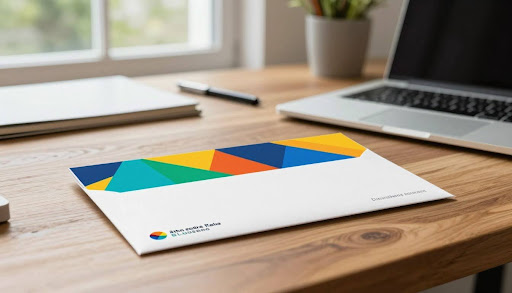
An effective envelope design template can make your mail stand out. Use an Envelope Printing Template to control where and how colors are used. For quick designs, free editable and printable envelope templates are great.
Keep the front machine-friendly while your brand shines elsewhere. Make sure bold details don’t block the address. This way, the USPS can automate the sorting, and your message stays clear.
Minimalist layouts with bold typography
Choose one strong font from Adobe Fonts or Google Fonts. Make a key line, like a surname or offer, stand out. Use lots of white space and high contrast for easy reading.
A simple Envelope Printing Template helps keep your design sharp. It ensures margins and safe areas are correct.
Patterned backs, flaps, and liners
Use the back panels for creative designs. Try subtle geometrics, brand textures, or event prints. This keeps the front side clear for the address.
With a clean template, grayscale patterns or one spot color can look premium without breaking the bank.
On-brand color blocking and gradients
Use color blocking to make your envelope stand out. Keep gradients light to ensure strong contrast. A reusable layout from free templates helps you stay on track.
Illustrations, icons, and seasonal motifs
Use hand-drawn art, icon sets, or seasonal themes. Place artwork away from the address and barcode. This keeps your design consistent.
For a polished look, match envelope flaps with soft-touch or vellum effects. Coordinate with letterhead for a cohesive look. Whether using an Envelope Printing Template or free templates, keep your design clear and on-brand.
How to Print Envelopes at Home Without Jams or Smudges
Start with a clean, sharp address before you print. To print envelopes at home, use the right template and match it to your printer. A precise template helps your printer print without streaks.
Check your printer’s manual for supported sizes and tray diagrams first. Home printers like HP, Epson, Brother, and Canon need the flap closed and a specific print-side orientation. Use the manual feed slot for straighter paths and fewer curls.
Printer settings and feed orientation
Set the driver to the exact envelope size, not “Letter.” Choose Envelope or Heavy as the media type to slow rollers and improve adhesion. Fan the stack, square the edges, and load a few at a time to keep registration tight.
Follow the tray icon for feed direction. Some printers want print side down; others need it up. If your envelope printing template shows a logo or return mark, run a single test to confirm placement.
Ink vs. laser considerations for coverage
Inkjet models excel on uncoated, porous stocks. For dense color, allow extra dry time to avoid smears. Skip glossy coatings that can stay tacky and offset.
Laser printers fuse toner with heat. Use laser-safe envelopes with heat‑resistant windows and adhesives. Heavy coverage can wrinkle thin paper; reduce toner density or use a lighter pattern in your envelope template for printing.
Paper weight and envelope stock selection
For everyday mail, choose 24–28 lb (90–105 gsm). For premium invites, 80–100 lb text (118–148 gsm) adds rigidity without stressing the feed path. Test one piece to ensure the flap adhesive doesn’t melt or catch.
When planning how to print envelopes at home?, keep batches small, let prints cure before handling, and match your envelope printing template to the stock color so addresses stay high-contrast and machine-readable.
| Printer Type | Best Stock | Key Setting | Feed Tip | Coverage Advice |
| Inkjet (HP, Epson, Canon) | Uncoated 24–28 lb; 80–100 lb text | Media: Envelope or Heavy; Exact size | Manual slot; flap closed; print side per diagram | Allow longer dry time; avoid glossy envelopes |
| Laser (Brother, HP, Lexmark) | Laser-safe with heat‑resistant windows | Media: Thick/Envelope; Lower fuser temp if available | Straight path feed; small batches | Limit solid fills; lighten density in the envelope printing template |
| All-in-One Home Devices | 24–28 lb everyday; bright white | Custom size preset saved from envelope template for printing | Fan and square stack; align guides snugly | Test print one with the full design before a batch |
How to Print an Envelope Template in Word?
Looking for a quick way to set up addresses and brand elements in Microsoft Word? Printing an envelope template in Word is easy. You can use a free template or create your own for sizes like #10, A7, or 5×7. This keeps your designs consistent across your team.
Tip: Use fonts like Arial, Calibri, or Times New Roman for USPS scans. Make sure text is clear and the lower right is free for automation marks.
Setting up page size and custom margins
In Word, set the exact envelope size for perfect placement. Sizes like #10 and A7 are common. Use tight margins to keep branding and addresses in the right spots.
- Layout > Size > More Paper Sizes to enter custom width and height.
- Use margins that protect a clear zone at the lower right for sorting.
- Align with your printer’s feed path to reduce skew or smudge.
These steps work whether you create a template from scratch or use a free one with your logo.
Using the Envelopes tool and address merge fields
Word’s Mailings tab makes it easy to place addresses right. Use Mailings > Envelopes to add return and delivery addresses. Adjust fonts and alignment for clear reads.
- Insert merge fields for Name, Company, Address1, Address2, City, State, and ZIP.
- Use Layout Options to refine text box positions and snap with align tools.
- Print one proof to verify spacing before committing to a run.
This method ensures accurate and legible addresses every time you print.
Saving a reusable envelope template for printing
Save your settings once and reuse them. Save the file as a .dotx template for team access. Keep it consistent with your brand’s fonts, colors, and spacing.
- Name the file clearly by size, such as “#10-brand-envelope.dotx.”
- Include guides for return address, recipient block, and clear zones.
- Before each run, check File > Print > Printer Properties to confirm feed orientation and print a single proof.
Whether you use a free template or create your own, this method ensures accuracy and a polished look every time.
How to Print Envelopes with Multiple Addresses?
Starting a mailer needs clean data and a smooth workflow. If you’re wondering how to print envelopes with multiple addresses?, it’s simple. Just use a neat list and an envelope template in Word. A free template in PDF can also help you check sizes before printing a lot.
Mail merge with Excel or CSV data
Make a spreadsheet with columns for each address part. Use two-letter state codes and keep ZIP as text to avoid losing leading zeros. In Word, go to Mailings, start a merge for Envelopes, and link each field to your template.
Use rules to hide empty lines and print company info only when it’s there. Try to keep each line short to avoid text from getting cut off.
Formatting names, companies, and apartment lines
Write names as FirstName LastName on one line, and Company on the next if there is one. Put Apt or Suite in Address2, not Address1. Use Apt, Ste, or Unit for postal accuracy.
Make sure names and addresses are in title case. Keep City, State ZIP on one line with a single space before ZIP or ZIP+4. Test your merge with both business and residential samples to catch any issues.
Batch printing tips and quality checks
Print 5–10 test envelopes first to check alignment and drying time. Make sure text is clear and artwork doesn’t interfere with the barcode. Printing in small batches helps avoid mistakes and keeps the printer cool.
For big jobs, split the print run and log any errors. Reprint with the same settings to keep everything consistent. Watch toner or ink levels and check merged fields to ensure all addresses are correct.
Pro tip: Save a set with your mapped fields and a matching free template in PDF. This way, you can see how everything fits before printing a lot.
What Are Common Envelope Printing Mistakes?
Small choices can stall delivery and waste a print run. Many mistakes start with layout. A precise envelope template or design keeps artwork safe and addresses clear.
Plan for automation first. USPS machines read from the bottom right. Keep branding strong but never at the cost of legibility. Test on actual stock before committing to volume.
Design in the barcode clear zone
The lower-right clear zone must stay free of graphics, screens, and rules. Placing art there can trigger surcharges or delays. Use an envelope template that blocks this area so creatives see the boundary during layout.
Reserve that space for automation only. Shift taglines, QR codes, and patterns higher or to the back flap. A disciplined envelope design template prevents last‑minute fixes.
Insufficient contrast for postal scanning
Light text on pastel or patterned fields hurts OCR. Aim for at least a 4.5:1 contrast ratio between address lines and the background. Black or dark gray on white or cream stocks is safest for long runs.
If you must print over tint, reduce the tint to 10–15% and thicken the font weight. Your envelope template should flag any address panel that falls below the target contrast.
Over-inking and edge cracking on folds
Heavy coverage at creases can crack, especially on uncoated or textured stocks. Reduce ink near folds, switch dense builds to spot colors, or pre-score before folding to protect the surface.
Run a rub test after printing and before inserting. Update the envelope design template to add low-ink “gutters” along score lines.
Misaligned flaps and window shifts
Window envelopes expose errors fast. If the letter shifts, addresses drift out of view. Standardize letter templates, lock the address block, and test with single and multi-sheet inserts.
Allow tolerance inside the window by moving the block up and left slightly. Your envelope template should include a window mask to preview real insertion results.
| Mistake | Risk | Prevention Using a Template | Proof/Test Tip |
| Art in barcode clear zone | Automation failure, surcharges | Lock a no-print zone in the envelope design template | Dry-fit with rulers; verify a clean lower-right area |
| Low contrast addressing | Poor OCR, returned mail | Contrast checks embedded in the envelope template | Measure contrast; compare against 4.5:1 target |
| Over-inking at folds | Cracking, scuffs | Set low-ink gutters along scores | Fold mockups; run rub and bend tests |
| Window misalignment | Address out of view | Window mask and safe area built into layout | Insert 1–5 sheets; shake test and verify reveal |
| Glossy varnish over address panel | Smearing, scanner glare | No-coat zone on the address area | Scan under bright light; check for reflectivity |
| Thin stock that wrinkles | Jams, distorted print | Stock notes embedded in the envelope design template | Test-feed 25 pieces; inspect for waves or curl |
| Inconsistent return address | Brand drift, sorting issues | Locked layer with fixed coordinates | Overlay prints; confirm pixel-perfect position |
Final check: a brief preflight built into your envelope template—clear zones, contrast, ink limits, and window masks—catches these pitfalls before they reach the press.
Working with an Envelope Template for Printing in Different Tools
Before you start designing, pick the right tool for the job. Whether it’s a simple template or a detailed layout, make sure it fits your needs. Keep your brand consistent, addresses easy to scan, and ensure your files match your printer’s requirements.
Envelope printing template Word vs. Google Docs
Microsoft Word has tools like Envelopes and Mail Merge, perfect for office use. It allows you to create custom sizes and print envelopes in batches from Excel data.
Google Docs can also create envelope templates, but it’s better for simple designs. It lacks the advanced features of Word, like merge controls and barcode placement.
Adobe Illustrator/InDesign for press-ready files
For precise designs, Adobe Illustrator and InDesign are top choices. They support exact sizes, layers for USPS clear zones, and color control. Make sure to set bleeds, define safe areas, and use guides for indicia and windows.
InDesign is great for maintaining consistent branding. Use Data Merge for test prints. Most printers still use RIP for variable data, so get their dieline and export specs before finalizing your design.
Canva and online editors for quick layouts
Canva and similar tools are fast for creating stylish envelope designs. Export your design as a PDF with crop marks and bleed. Then, add addresses in Word if the online editor lacks merge tools.
Ensure your design has high-contrast type and respects clear zones. Confirm the dieline from your printer to ensure a smooth process from design to mailing.
Free Editable and Printable Envelope Templates
Save time and keep your mail looking good with free editable and printable envelope templates. They match standard sizes and dielines, fitting common stocks and passing postal checks. Choose a format that fits your tools, then add clear type, crisp logos, and well-placed return addresses.
Pro tip: Always check the template size matches your envelope to avoid scaling errors. Run a single test print on your chosen stock before a full batch.
Free printable envelope printing template options
Find a free printable envelope printing template that meets your project needs. Microsoft has Word layouts for #10, A7, and A2 envelopes. Avery’s gallery offers cut-and-fold options and mailing setups in Word and PDF.
Printers like PrintPlace, UPrinting, and Overnight Prints publish accurate dielines in AI, IDML, and PDF. These are great for large runs. Many stationery blogs also share craft-friendly PDFs for A7 and 5×7 cards.
These sources ensure address zones, flaps, and bleeds are in the right place. This helps with automation, reduces smudges, and keeps your brand intact from tray to mailbox.
Free envelope printing template Word and PDF sources
- Microsoft Office: Word templates for #10 letters, A7 invites, and A2 notes.
- Avery: Word and PDF designs with alignment marks and easy editing.
- PrintPlace, UPrinting, Overnight Prints: downloadable dielines in AI, IDML, and PDF.
- Stationery blogs: printable cut-and-fold files for events and cards.
Mix formats as needed. Word is fast for everyday mailers, while PDFs and AI files are better for precision. Use free printable pdf templates for envelopes for exact folds and safe areas. Choose free editable and printable envelope templates in Word for quick text edits.
How to customize free printable PDF templates for envelopes
Open the PDF in Adobe Acrobat, Inkscape, or Adobe Illustrator to add a logo, return address, and brand colors. Embed fonts, keep high contrast for scanning, and maintain the USPS clear zone. For Word files, lock styles for addressing, use a limited palette, and confirm that line breaks display correctly on your printer.
Before printing, double-check dimensions, orientation, and stock weight. Print one sample, inspect flap alignment, and confirm crisp edges. Whether you use a free printable envelope printing template or free printable pdf templates for envelopes, small tests prevent costly reruns and keep your mail looking sharp with free editable and printable envelope templates.
Optimizing a 10 Envelope Template Word for Business Mailers
Make every #10 send look sharp and scan fast by tuning your 10 envelope template word with postal rules in mind. A clean layout in an envelope printing template word improves delivery and protects brand polish while staying within USPS clear zones. Build a reusable envelope template that your team can trust on every mailing.
USPS-friendly addressing and fonts
Set the delivery address in 10–12 pt Arial, Calibri, or Times New Roman. Keep it left-aligned with single spacing and 0–3 pt after each line. Use two-letter state codes, ZIP+4 with a hyphen, and dark, high-contrast ink. All caps are optional. This simple setup helps the sorter read your 10 envelope template word without a hitch.
Window alignment and letterhead matching
For window mailers, position the letter’s address block about 0.875–1 in from the top and near 4.125 in from the left, then maintain at least 0.125 in clearance inside the window. Match the letterhead’s logo and color cues with restrained marks on the upper-left return area or the back flap. Your envelope printing template word should mirror the letter’s tone and hierarchy.
Brand elements that stay within clear zones
Keep all graphics outside the barcode clear zone and at least 0.25 in from every edge to avoid trimming issues. Use small, consistent brand elements—logo, tagline, or a thin rule—that do not touch address lines, stamps, or indicia. Save the layout as a .dotx with locked text boxes so the envelope template stays consistent across campaigns.
With a disciplined grid, readable fonts, and precise window placement, your 10 envelope template word becomes a reliable system. The result is a professional envelope printing template word that aligns with USPS standards and keeps every envelope template on brand.
A7 and 5×7 Envelope Template Word for Invitations and Cards
Make a great first impression with the right envelope design. Choose sizes, types, and textures that match your message. Use Microsoft Word to make your address clear and professional.
Tip: Keep the front simple for scanners. Decorate the flap or liner for a big impact without losing clarity.
A7 envelope template Word: formal invites
An A7 envelope is 5.25 x 7.25 inches. It’s perfect for 5×7 invites and cards. In your a7 template, set the page size and center the address for balance.
Use elegant fonts like Garamond or Baskerville at 10–12 pt. Make sure the lines are clear. A small monogram above the return line adds a touch of class.
Use high-contrast ink on colored stocks for scanners. Avoid the barcode area on the lower right.
5×7 envelope template Word: photos and announcements
For photo mailers and announcements, use simple fonts like Helvetica or Calibri. This keeps text clear on dark papers. Add a small icon in the upper-left for a personal touch.
Always test-print one piece before a big batch. Check margins, orientation, and that text is safe from edges and folds.
Choosing liners, seals, and finishes
Liners add depth and make envelopes stiffer. Choose metallic, vellum, or patterned papers for A7 envelopes. This makes assembly easier and keeps the design cohesive.
Seals can be foil stickers, wax stamps, or peel-and-press tabs. Place them so they don’t block scanners. Soft-touch, eggshell, and cotton stocks feel luxurious. Keep designs simple on the front and add flair to flaps or liners.
- Formal sets: A7 with Baskerville, metallic liner, discreet foil seal
- Photo sets: 5×7 envelope template word with clean sans-serif, vellum liner, clear tab
- Everyday sets: Neutral stock, centered address, subtle icon on flap
Envelope Template Printable A4: International and Home Printing Tips
An envelope template printable A4 is great for home printers in the U.S. and worldwide. Set your artboard to 210 x 297 mm with bleed, glue tabs, and fold guides. Make sure to print at 100% without scaling to keep everything right.
Choose paper that folds well. Use 100–120 gsm for everyday envelopes and 160–200 gsm for sturdier ones. Always check your printer’s limits first. If you’ll add an address, leave space for postal marks and make sure the address is on the front.
For a free template, write in Microsoft Word or Google Docs. Then, export a vector PDF to keep lines sharp. This is especially useful for cutting and matching bleed. When sending abroad, use the local format and put the country name on the last line in uppercase.
Make sure your envelope template follows size rules to avoid extra fees. Check the thickness, aspect ratio, and postage with USPS or your local carrier. A well-set-up template saves time and ensures smooth mailing.
| A4 Dieline Element | Why It Matters | Recommended Setting | Pro Tip |
| Bleed | Prevents white edges after trimming | 3 mm on all sides | Extend backgrounds and patterns past the cut line |
| Glue Tabs | Ensures strong, clean assembly | 10–15 mm width | Use double-sided tape for quick, no-smudge sealing |
| Fold Guides | Accurate folds and alignment | Light dotted vector lines | Score heavier stocks before folding to avoid cracking |
| Print Scale | Keeps final size accurate | 100% (no scaling) | Turn off “Fit to page” in the print dialog |
| Paper Weight | Durability and machinability | 100–120 gsm (standard), 160–200 gsm (rigid) | Check duplex and envelope feed paths in printer specs |
| Address Zone | Postal automation readability | High contrast, clear fonts | Leave the barcode clear zone free of graphics |
| File Format | Line sharpness and color | Vector PDF export | Embed fonts to prevent reflow on other devices |
| International Addressing | Global delivery accuracy | Country on last line in uppercase | Verify size class to avoid non-machinable surcharges |
Start with an envelope template printable a4 and customize it for your brand and local needs. Whether you use a Word PDF or a vector layout, keep the design precise. This ensures smooth assembly and mailing.
A well-prepared envelope template makes your final product look professional and meets postal standards. A few setup checks can make every print run more reliable and efficient.
From Templates to Custom Envelopes: Scaling for Professional Results
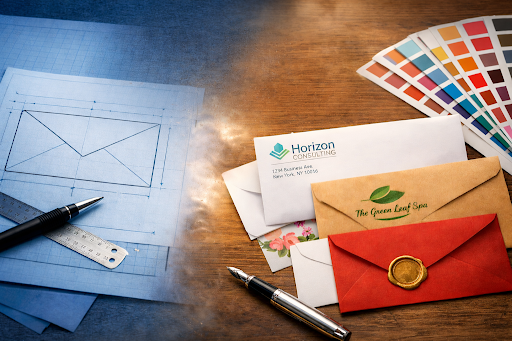
As volumes grow and brand demands rise, a simple envelope design template can evolve into press-ready files for custom envelopes. When color accuracy, speed, and special finishes matter, an envelope template for printing becomes the bridge between DIY and a trade press.
When to move from DIY to professional printing
Shift when runs exceed your home printer’s sweet spot or when you need tight color control. If mailings must match Pantone brand tones, a shop with offset or high-end digital presses helps. Move up as soon as you need variable data at scale without jams or smudges.
Teams that test an envelope design template in-house often hand off a finalized envelope template for printing to ensure consistent results across thousands of custom envelopes.
Spot color, foil, emboss, and specialty stocks
Pantone spot color locks in brand identity on coated and uncoated stocks. Foil stamping adds shine; emboss and deboss create tactile cues; letterpress adds crisp depth. White ink unlocks designs on dark papers.
Choose stocks like cotton, kraft, vellum, pearlescent, or recycled. Confirm machinability, opacity for addressing, and how each stock holds foil or heavy ink on folds. Align these choices with your envelope design template to avoid cracking and show-through.
Proofing, dielines, and production checklists
Request a dieline for custom sizes or full bleeds, then export press-ready PDFs in CMYK or spot color with 0.125 in bleed and outlined fonts. Ask for a hard proof or a color-calibrated contract proof to confirm tone and density.
- Keep artwork out of USPS clear zones; verify window placement and flap orientation.
- Check ink coverage over folds, indicia specs, and automation compliance.
- Coordinate variable data printing: provide a clean CSV, mapped fields, and sample records.
Whether refining an envelope template for printing or commissioning custom envelopes, build a tight handoff from your envelope design template to production to protect brand color, legibility, and deliverability.
Conclusion
A good Envelope Printing Template does more than look good. It boosts open rates and keeps your brand in mind. Choose the right size for your needs, like #10 for statements or A2 for notes.
Make sure addresses and graphics are in the right places. Use high-contrast type and place stamps correctly. Small details like clean margins help too.
For quick work, use a Word-based template. For bigger jobs, Adobe InDesign or Illustrator are better. Free editable starters, like pdf templates, can be customized with your brand.
Choose the right paper and printing method to avoid problems. As you send more mail, consider custom designs and finishes. Always check your design before printing.
With the right design and tools, your Envelope Printing Template can look great anywhere. It can go from a home printer to a commercial press. Your mail will stand out right away.
FAQ
What is an envelope printing template and why should I use one?
An envelope printing template is a layout with exact sizes and USPS clear zones. It ensures your design prints and mails correctly. It defines safe areas for addresses and postage, and for full-bleed artwork.
Using a template reduces misalignment and improves legibility. It speeds up production, whether you print at home or send files to a professional shop. It’s essential for custom envelopes and standard sizes like #10, A7, and 5×7.
How do I choose the right envelope size for my project?
Match the envelope to the insert. Common U.S. sizes include #10 (4.125 x 9.5 in) for business letters. A7 (5.25 x 7.25 in) is for 5×7 invitations, and A2 for note cards.Square formats are for statement pieces, and booklet and catalog styles for brochures or thicker contents. Consider USPS machinability and aspect ratio. Also, whether you need a window envelope template for transactional mail.
How to print an envelope template in Word?
In Microsoft Word, set a custom page size to your envelope’s dimensions. Then, use Mailings > Envelopes to place return and delivery addresses.For precise layouts, add text boxes for addresses and logos. Set custom margins to preserve the barcode clear zone. Save the setup as a reusable .dotx. This works for #10, A7, and 5×7 envelope templates.
How to print envelopes with multiple addresses?
Use Mail Merge in Word with an Excel or CSV file. Map fields for Name, Company, Address1, Address2, City, State, and ZIP. Add rules to skip blank lines.Print a small proof batch to confirm alignment, feed orientation, and legibility. Keep address lines concise and use USPS state abbreviations. This workflow scales well for marketing mail and statements.
What are common envelope printing mistakes?
Frequent issues include artwork in the lower-right barcode clear zone. Low contrast between text and background is also a problem. Heavy ink across folds that cracks is another issue.Misaligned window addresses are common. Avoid glossy coatings over address areas. Watch for thin stocks that wrinkle. Standardize return address placement. A preflight checklist prevents reprints and postage delays.
How to print envelopes at home without jams or smudges?
Feed through the manual tray, set the exact envelope size, and select “Envelope” or “Heavy” media. Inkjet prints best on uncoated stocks. Allow extra drying for dense coverage.Laser printers need heat-safe adhesives and windows. Choose 24–28 lb for everyday or upgrade to 80–100 lb text for premium invites. Print in small batches, fan the stack, and let ink cure before handling.
Why does envelope design matter for open rates?
USPS and DMA research show tactile, well-designed mail lifts opens and responses. Clear hierarchy directs the eye to the recipient address and any teaser copy. Use high-contrast type, ample white space, and consistent brand elements that stay out of postal clear zones.Test variants in small mailings to measure performance.
When should I use window vs. non-window envelopes?
Use window envelopes for transactional mail where the address prints on the letter. This ensures match accuracy and reduces steps. Choose non-window for privacy, premium invitations, or designs that need precise alignment.Confirm the letter’s address position matches the window and test with multiple sheets to account for shift.
What are best practices for color, typography, and white space?
Aim for dark text on light stock with 10–12 pt readable fonts like Arial, Calibri, Georgia, Garamond, or Baskerville. Keep generous white space around the delivery address for OCR. Use restrained color blocking or gradients away from address zones.Maintain a consistent brand palette and logo placement outside clear zones.
How do I create a press-ready envelope design template?
In Adobe Illustrator or InDesign, set the exact size, add 0.125 in bleed, and build layers for artwork, guides, and USPS zones. Lock guide layers, outline fonts (as required), and export CMYK PDFs with crop marks.Request a dieline from your printer for custom envelopes, foiling, or embossing. Use spot colors for brand accuracy when needed.
Where can I find free editable and printable envelope templates?
Try Microsoft Office templates for Word, Avery’s design gallery, and printers like PrintPlace, UPrinting, and Overnight Prints for downloadable dielines (AI, IDML, PDF). Many stationery blogs offer free printable PDF templates for envelopes, including A7 and 5×7 cut-and-fold patterns.Verify dimensions and print at 100% to avoid scaling.
How do I customize a free printable PDF template for envelopes?
Open the PDF in Adobe Acrobat, Inkscape, or Illustrator to add logos and return addresses. Ensure fonts embed correctly, keep the barcode clear zone free of graphics, and preserve bleed if the design runs to the edge.Print a single proof on your chosen stock before a full run.
How do I optimize a 10 envelope template Word for business mail?
For #10 business mail, set the delivery address in 10–12 pt, left-aligned, with USPS formatting (two-letter states, ZIP or ZIP+4). If using a window, align the letter’s address block to the window with at least 0.125 in clearance.Keep brand marks small in the upper-left or back flap and out of the clear zone. Save as a .dotx for consistency.
What’s the difference between Word and Google Docs for envelope templates?
Word offers robust Envelopes and Mail Merge features, making it ideal for batch addressing. Google Docs can handle custom sizes and basic layouts but relies on add-ons for merges and offers less control over positioning. For exact registration, Word or design apps are preferable.
Can I design envelopes in Canva or online editors?
Yes. Create your layout, export a print PDF with bleed and crop marks if available, and add addressing later in Word or via variable data tools if the platform lacks mail merge. Keep address zones clear and confirm final dimensions match your physical envelopes.
How do I set up an envelope template printable A4 for home printing?
Use an A4 sheet with a cut-and-fold dieline that includes bleed, fold guides, and glue tabs. Print at 100% (disable “Fit to page”). Choose 100–120 gsm for easy folding or 160–200 gsm for sturdier builds if your printer supports it.Reserve the clear zone on the panel that becomes the front after folding.
What stocks and finishes elevate invitation envelopes like A7 and 5×7?
Premium stocks include cotton, eggshell, and vellum finishes. Add liners (metallic, vellum, patterned), subtle monograms, or foil seals. Keep the front minimal for USPS scanning and place most decoration on flaps, liners, or the back panel to maintain legibility.
When should I move from DIY to professional printing?
Switch when volumes rise, you need Pantone spot color accuracy, or you’re adding foil, emboss, letterpress, or white ink on dark stocks. Ask your printer for a dieline, supply press-ready PDFs with bleed, and request a hard proof. For variable addressing, coordinate a VDP workflow and provide a clean CSV.
How can I avoid smudging, misalignment, and jams on dark or coated envelopes?
Use laser-safe envelopes for toner and uncoated stocks for inkjet. Reduce heavy coverage near folds, select “Heavy” media settings, and slow the print speed if available. For dark stocks, print white ink via a professional shop or use contrasting labels or cards inserted behind windows to boost readability.
Do free envelope printing template Word PDFs exist for quick starts?
Yes. You can find free envelope printing template Word PDFs and free envelope printing template Word files from Microsoft, Avery, and many print providers. They include #10, A7, 5×7, and A2 formats, often with postal guides. Customize branding, verify size, and run a test print before mailing.

Leave a Reply