
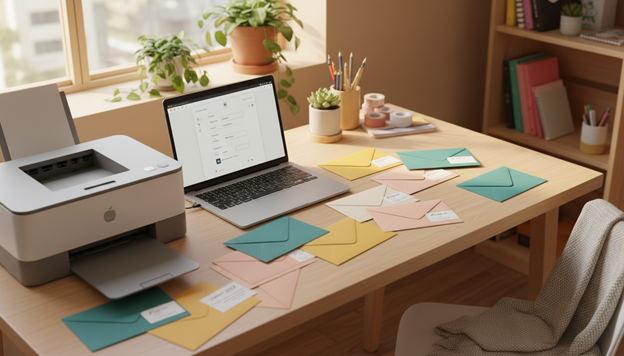
Envelope printing can make your mail look neat and organized. This guide will show you how to use tools and follow simple steps. Your addresses will print clearly and easily to read.
Instagram can inspire your envelope designs, but you might need to Log In or Sign Up. Knowing this saves time when you’re looking for ideas.
This guide will teach you to print envelopes with common software and a home printer. You’ll also learn what to check before printing. By the end, you’ll print addresses without jams, smudges, or misalignment.
The aim is to help you print addresses that are easy to read. This is important for personal and small-business mail. The guide focuses on the United States, where clear addresses help mail move faster and reduce returns.
Key Takeaways
- Envelope printing at home can create a clean, uniform look for U.S. mail.
- This home envelope printing guide focuses on readable, USPS-friendly address results.
- You’ll learn how to print envelopes from popular tools and common home printers.
- Planning your layout helps prevent common envelope address printing issues like crooked text.
- Instagram can provide design ideas, but some viewing and saving requires a Log In or Sign Up.
- With the right setup, you can print addresses on envelopes at home quickly and consistently.
What Envelope Printing at Home Is and Why It Works
Envelope printing at home lets you print addresses on envelopes using a regular printer. You can use tools like Microsoft Word, Google Docs, or Canva. This method replaces handwriting with a clean, fast layout.
It works because envelopes are made for ink or toner. You set margins once and then print the same way each time. This makes your home printer reliable for mail.
When home-printed envelopes look professional enough for business mail
Professional envelopes at home are possible if the envelope is smooth and the address is dark. For business, the goal is clear text and a block that scanners can read. Simple fonts and clear spacing help a lot.
Keep design elements away from the address area. A small logo near the return address can look good, but big graphics can mess up contrast. A clean envelope looks like it came from a print shop.
Common use cases in the United States, from wedding invites to small-business shipping
Wedding invitation envelopes are a great fit because couples need many identical addresses. A saved list and layout keep everything uniform. This works for holiday cards, graduation announcements, and event RSVPs too.
Small business mail envelopes are also a good match. They’re great for invoices, thank-you notes, and product inserts. Many U.S. sellers print details on envelopes for lightweight items. Instagram has many envelope layouts to explore.
Key benefits: speed, consistency, and readable delivery addresses
The biggest advantage is speed. Once your template is set, you can print a batch in minutes. This is a big help for sending reminders, promos, or monthly statements.
Consistency is another big win. Printing envelopes with the same font and spacing makes mail look organized. It also reduces returns due to hard-to-read lines, since printed text stays clear.
| What matters | Handwritten envelopes | Printed envelopes |
| Time for 50 pieces | Often 45–90 minutes, depending on handwriting speed | Often 10–25 minutes once the layout is saved |
| Address placement | Varies from envelope to envelope | Stays consistent with a template and printer settings |
| Readability for delivery | Can suffer with rushed writing or uneven lines | Clear type improves legibility and sorting accuracy |
| Best-fit examples | One-off notes and personal cards | Wedding invitation envelopes, billing mail, and repeat batches |
Supplies and Tools You Need for Printing Addresses on Envelopes
Getting clean prints is easy with a simple checklist. Choose the right envelopes for your printer and layout. This helps avoid smudges, jams, and off-center lines.
Before buying a lot, look at your favorite designs. Instagram is great for ideas, but you might need to Log In or Sign Up to save them.
Choosing the right envelopes: sizes, paper weight, and texture
First, think about what you need to mail. In the U.S., sizes #10 A7 work for most, like business letters and invitations.
For clear text, pick smooth paper. Thicker paper feels better, but make sure your printer can handle it. Check if your tray supports the flap and edges.
| Envelope type | Best use | Paper feel | Printing note |
| #10 business | Invoices, statements, office mail | Usually smooth, medium weight | Reliable feed in most home printers when the flap is set flat |
| A7 invite | Wedding invites, announcements, RSVP mail | Often thicker, sometimes textured | Texture can soften small fonts; test a single piece before a full run |
| Recycled kraft | Brand-forward small-business mailers | Coarse, fibrous finish | Dark paper needs high-contrast ink; avoid tiny type and light colors |
Inkjet vs. laser printers: what to know before you print
Inkjet vs laser printing affects how ink looks on paper. Inkjet ink takes longer to dry on textured paper, leading to smudges if stacked too soon.
Laser printers use heat to fuse toner, creating crisp prints fast. But, thick seams and heavy paper can wrinkle or curl under heat, especially on invitation-style envelopes.
Try printing on a few spare envelopes first. This shows if the paper absorbs ink well and if the flap edges move smoothly through the printer.
Optional tools: envelope feeders, alignment guides, and return address stamps
An envelope feeder can make printing more consistent. It keeps the stack straight and the pickup point steady. Simple alignment guides also help you place prints correctly when changing envelope sizes.
A return address stamp is handy for quick, clean branding. It keeps the corner mark uniform and pairs well with printed delivery addresses for a polished look.
Printer Setup Basics for Clean, Centered Address Results
Getting clean custom envelope printing right starts with two key things: the right software and the right hardware. When these match your envelope stock, the address will be centered. The feed will be smooth, and jams will be less common.
Finding your printer’s envelope settings in the print dialog
Start by checking the print dialog envelope size in your app’s print window. If the size is off, the printer might shift the text or clip it.
Look for settings like “Envelope,” “Thick paper,” or a rear-feed option. These settings control speed and heat. They help prevent smudges on toner or ink.
Adjusting paper guides and tray support to prevent skewing
Skew often comes from loose guides or a sagging envelope. A well-set envelope tray keeps the envelope square and flat.
Adjust the guides so they touch the envelope edges without bending them. Use the tray support if your printer has it. Feed envelopes one at a time to avoid dragging. These steps help avoid crooked printing, especially with lighter #10 envelopes.
| Setup check | What to set | What it prevents |
| Print size | Match print dialog envelope size to the exact envelope (like #10 or A7) | Off-center text and clipped addresses |
| Media type | Select printer envelope settings or a thicker paper option when available | Smudges, poor drying, and faint print |
| Guides and support | Snug guides, extended tray support, straight feed path in your envelope tray setup | Skew, misfeeds, and wrinkled corners |
Test prints: why one blank-envelope run saves time and waste
Do a test print with a single blank envelope before a batch. It checks if the address is centered and margins are safe. It also confirms the feed direction is right.
If you use Instagram for envelope ideas, be ready for login prompts. Compare your test print to your desired layout. Make adjustments once, not after printing twenty envelopes.
envelope printing
A clean layout is key to fast delivery. A good envelope printing approach makes every line easy to read and scan. Think of the envelope as a simple grid with wide margins and no distractions near the barcode.
Address placement: delivery address block vs. return address position
Put the delivery address in the lower center, with enough space around it. Keep the lines stacked: name, street, city, state, ZIP Code. This makes sorting and reading easier.
For the return address, use the upper left and keep it smaller. Avoid the edges to prevent text loss. If you add a logo, keep it small and away from the delivery area.
| Area on envelope | Recommended placement | What to avoid |
| Return address | Upper left, 0.5–1 inch from top and left edge | Wrapping long lines, oversized branding, text near the stamp zone |
| Delivery address | Lower center, with clear white space on all sides | Decorative frames, angled text, tight line spacing that looks crowded |
| Bottom clear zone | Keep the lower edge clean for postal markings | Artwork, script fonts, or extra notes close to the bottom edge |
Choosing readable fonts and sizing for USPS-friendly clarity
Use a USPS readable font with clean shapes and steady spacing. Arial, Helvetica, or Calibri work well on most printers. Choose a font that looks good at small sizes and doesn’t blur on textured paper.
For most mail, 10–12 pt is a good size for the delivery block. Make sure the ZIP Code is clear and bold. Keep letter spacing normal and avoid thin fonts that fade.
Instagram is a great place to find modern address typography and layout ideas. Some posts require Log In or Sign Up to view and save examples, so plan ahead if you want to reference a look while you format your template.
Color and contrast tips for scannable, high-visibility addresses
High contrast address printing works best with dark text on a light envelope. Black ink is safest for scanning, especially on cream or bright white stock. Avoid metallic inks and pale pastels that can disappear under indoor lighting.
Keep backgrounds clean behind the address block. If you want color, use it for small accents away from the text, not under it. A simple rule: if it’s hard to read from arm’s length, it’s hard to sort at speed.
How to Print Envelopes in Microsoft Word (Windows and Mac)
Need to print envelopes with the same address on each? Use Microsoft Word instead of typing each one out. It keeps the spacing even and prevents smudges or off-center text.
Looking for design ideas? Many turn to Instagram for envelope layouts. You might need to Log In or Sign Up to see more.
Using the Envelopes tool to add delivery and return addresses
Open Word and go to the Mailings tab. Choose the Word Envelopes tool. In the dialog box, enter the Delivery and Return addresses.
Choose a clean font and a size that’s easy to read. If the address looks too tight, adjust the formatting before printing. This prevents lines from wrapping in odd places.
- Check spelling and ZIP Codes before printing.
- Use Preview to spot uneven margins early.
- Keep punctuation simple for clearer scanning.
Selecting the correct envelope size and feed method
Match your paper stock to the envelope size in Word. Pick a common size like #10 for business mail or A7 for invitations. Make sure it matches what you have.
Then, set the envelope feed method. This tells Word how to pull the envelope. The direction, flap position, and tray can affect alignment a lot.
| What you set in Word | What to match in real life | Quick way to confirm |
| Envelope size in Word | The exact envelope dimensions on the packaging | Measure one envelope and compare to the listed size |
| Envelope feed method | Flap direction and whether the envelope is face up or face down | Check the printer diagram near the tray or in the printer’s on-screen guide |
| Printing options | Correct tray and paper type (plain vs. heavier stock) | Run one test on a blank envelope before the full batch |
Saving settings so future mailings take minutes
Once your layout prints clean, save the envelope settings. This way, you don’t have to rebuild the setup each time. In the Envelopes window, keep the size and feed choices ready for future mailings.
For frequent batches, create a trusted envelope setup. Stick to the same brand and a lot of envelopes. Small differences in paper can affect where ink lands.
- Do one test print and adjust position if needed.
- Confirm the return address stays inside the safe area.
- Save envelope settings after the final adjustment.
How to Print Envelopes in Google Docs Using Templates
Using a template makes it easy to create envelopes. Start by opening a new Google Doc. Set the page size to match your envelope, like #10 or A7. Adjust the margins so the text has room and doesn’t get cut off.
A simple Google Docs envelope template has two areas: the return address in the top-left and the delivery address in the center. You can use a one-cell borderless table or positioned text in a Drawing. This keeps the spacing even across different printers.
For an address template, keep lines short and easy to scan. Use a clear font like Arial or Times New Roman. Avoid tight line spacing. If adding a logo, keep it small and away from the delivery address.
| Template method in Google Docs | Best for | How it helps prevent shifting | What to watch |
| Borderless table with two cells | Simple layouts and fast edits | Keeps text blocks anchored to the page grid | Cell padding can change spacing if copied from another doc |
| Drawing with two text boxes | Precise positioning and saved layouts | Locks relative spacing between return and delivery addresses | May print slightly smaller if “Fit to page” is enabled |
| Single text block with manual spacing | One-off envelopes | Quick setup with minimal tools | Most likely to drift if margins or font settings change |
Before choosing a layout, gather some reference designs. Instagram can be helpful, but you might need to log in or sign up. This can slow you down when comparing styles.
Once you have a good layout, focus on your Google Docs printing setup. In the print preview, check the paper size and turn off scaling. Choose the right feed option if your printer has one. Test print on a blank sheet and then on an envelope to keep your template aligned.
How to Print Envelopes from Canva and Export for Home Printing
Canva makes it easy to design envelopes. But, small details matter a lot. A good design needs the right size, simple fonts, and enough space around the address.
Instagram is full of modern envelope designs. You might need to Log In or Sign Up to see, save, or go back to posts. This helps you create your Canva layout.
Designing a clean address layout and keeping safe margins
Start with a blank page that matches your envelope size. Add one text box for the delivery address and one for the return address. Keep it simple so the address is easy to read.
Use a safe margins approach: add extra space near edges, especially on the left and bottom. This prevents cutoffs and makes printing at home easier without needing to reprint.
Export settings: PDF Print vs. PNG, and when each is best
For most printers, PDF Print is the best choice. It keeps text sharp and spacing even. PNG is good for quick drafts or simple images, but it might not keep text as clear as a PDF.
| File type | Best for | What to watch |
| PDF Print | Final mailing pieces with crisp text and consistent placement | Confirm page size matches the envelope and avoid extra crop marks if you don’t need them |
| PNG | Fast previews, sharing a mockup, or testing layout before a final export | Resolution can affect clarity; small fonts may look softer when printed |
Printing from your computer: matching scale settings to avoid shifting
Scaling is the main cause of misalignment. In your print dialog, set print scale settings to 100% or “Actual Size.” Turn off “Fit to page” to avoid shifting.
Do a test print on a blank envelope first. Then, adjust your design in Canva if needed. This ensures your margins stay right and the address block stays in place.
Mail Merge and Bulk Address Printing for Invitations and Marketing
When you need to send out dozens or hundreds of items, a smooth process is key. Using mail merge envelopes ensures each address is consistent yet personal. For marketing and events, bulk envelope printing helps meet deadlines without the hassle of handwriting.
When to use mail merge vs. label printing
Directly printing on envelopes can look neat and save time, but it requires careful handling. If your printer struggles with thick paper or odd sizes, labels might be a better option. The choice depends on the number of items, the formality of the mail, and your printer’s reliability with envelopes.
| Approach | Best for | Tradeoffs to expect |
| mail merge envelopes | Invitations, donor mail, brand-forward campaigns where the envelope is part of the design | More sensitive to skew; requires a solid template and reliable envelope feed |
| Bulk labels | Utility mail, quick outreach, mixed envelope sizes, printers that jam on envelopes | Extra step to apply; placement can vary if labels are not aligned carefully |
| Hybrid (print return address, label delivery) | High volume with a polished look and fewer printer risks | Two production steps; label stock adds cost |
Importing address lists from spreadsheets and cleaning formatting
Begin with a spreadsheet that clearly lists addresses. Ensure each row has the right information in the correct columns. Before printing, clean up the formatting to avoid mistakes.
Looking at Instagram can help you keep your design consistent. A quick glance can ensure your spacing, font sizes, and placement are uniform.
Proofing a batch: spotting capitalization, ZIP code, and spacing issues
Checking addresses is crucial to avoid costly errors. Look for capitalization, missing state abbreviations, and ZIP codes that might be incorrect. Also, check the spacing around unit numbers to prevent awkward line breaks.
- Print 3–5 test envelopes from different parts of the list (top, middle, and bottom).
- Confirm ZIP code length and state abbreviations match USPS style.
- Look for double spaces and uneven line breaks that can throw off alignment.
Preventing Smudges, Jams, and Crooked Prints
Clean envelopes start with clean handling. To prevent smudges, print a small test first. Then, let it sit flat before stacking. Inkjet printers from HP, Canon, or Epson can smear fresh ink with light pressure.
Ink drying time varies by paper texture and humidity. Smooth, bright white envelopes dry faster than cotton or recycled ones. If you need to seal right away, print fewer at a time and avoid touching the address area.
Most jams come from bad feed setup, not the printer itself. Check the envelope flap position your model expects. Load only a few at a time. Bent, overstuffed, or wrinkled envelopes can cause jams in both Brother laser printers and common inkjets.
Adjust the side guides so they touch the envelope without squeezing it. Too loose causes drift, but too tight can buckle the paper. If your printer has a rear feed slot, it often reduces curl and lowers the risk of jams.
A crooked envelope printing fix usually starts in the tray. Square the stack, tap it on a table, and run a single envelope as a test pass. Stiffer envelopes can track straighter, while thin ones may flex and pull off line.
| Problem | Likely cause | Fast adjustment |
| Smudged address lines | Short ink drying time envelopes or glossy coating | Choose plain paper mode, reduce ink density, and let each piece dry before stacking to prevent envelope smudging |
| Envelope printer jams at pickup | Too many envelopes loaded or curled flap | Load 3–5 at once, flatten the flap crease, and use the rear feed path when available |
| Skewed or slanted text | Loose guides or uneven stack | Snug the guides, tap the stack square, and run one test for a crooked envelope printing fix |
| Printer feed issues envelopes slipping | Low-friction paper or worn rollers | Use thicker stock, clean rollers with a lint-free cloth, and slow print speed in settings |
If you look at envelope layouts on Instagram, treat them as a quick visual check for spacing and style. Some posts may require Log In or Sign Up. Rely on your printer settings and repeatable test prints instead. This controlled approach helps you correct printer feed issues and keep results consistent.
Design and Branding Ideas for Professional-Looking Envelopes
Clean branding can make your mail look premium without clutter. The goal is to keep the address easy to scan while your brand is subtle. Done right, your envelopes can make recipients recognize your mail before they open it.
Return address branding: logos, small icons, and consistent typography
A small return address logo near the top-left corner adds polish. But it should never compete with the text. Use a single-color mark, lots of white space, and a type style that matches your other materials for a professional look.
Keep the return block tight and consistent. Matching font size, spacing, and alignment makes every envelope part of a system, not a one-off.
Using social inspiration responsibly: saving layout ideas you see on Instagram
Instagram is full of envelope inspiration, from simple to modern designs. Many posts require you to log in or sign up to see details. So, it’s smart to screenshot your notes once you can see the design clearly.
See what you like as a layout idea, not a template. Take the concept, like where the return address sits, and rebuild it with your own style and brand. This way, it stays original.
Keeping designs mail-friendly: avoiding dark backgrounds under the address
Mail scanners prefer contrast. For a mail-friendly design, put the delivery address on a light background. Avoid patterns behind the text and skip glossy coatings that can smear ink. Use color as a thin border or a small accent near the return address.
Branded envelopes work best when styling stays outside the address zone. This makes your message look sharp, prints cleanly, and moves through USPS processing smoothly.
| Design choice | What it looks like on the envelope | Why it supports readability | Best use case |
| Small return address logo | Single-color mark beside the return address block | Keeps focus on text while adding brand recognition | Client mailers, invoices, appointment reminders |
| Consistent typography set | One font family used across return address and stationery | Improves legibility and creates a unified look | Ongoing mailings and repeat campaigns |
| High-contrast address zone | Dark text on a plain, light area with wide margins | Helps scanners and carriers read the delivery address fast | Everyday business mail and bulk sends |
| Accent color kept to edges | Thin border or small icon away from the address | Avoids interference with OCR and reduces smudge risk | Seasonal promos and event invitations |
| Social layout reference | Saved grid of spacing ideas from Instagram posts | Guides alignment choices without copying exact artwork | Refreshing a look while keeping brand standards |
Conclusion
Good envelope printing starts with the basics. Choose envelopes that match your project and work well with your printer. A clean, bright surface and a steady feed path help the ink or toner sit sharp.
With a little planning, you can get professional envelopes at home. They will look consistent from the first piece to the last.
Next, slow down for setup. Use your printer’s envelope settings, adjust the guides, and run one test print to confirm alignment. These home envelope printing tips cut down on smudges, jams, and crooked lines.
So, you can print addresses on envelopes with fewer do-overs.
Choose the tool that fits the job. Microsoft Word is quick for single sends. Google Docs templates are simple for shared projects. Canva helps when you want a branded layout with safe margins.
Once you like the look, keep the same font, spacing, and placement. This makes envelope addressing easy and readable for USPS sorting.
When the list gets long, scale up with mail merge. This way, each envelope prints clean without manual edits. If you pull design ideas from Instagram, remember that access can switch to Log In or Sign Up with little warning.
Save references early. This small step helps you keep a consistent style across a full mailing. It maintains professional envelopes at home.

Leave a Reply