
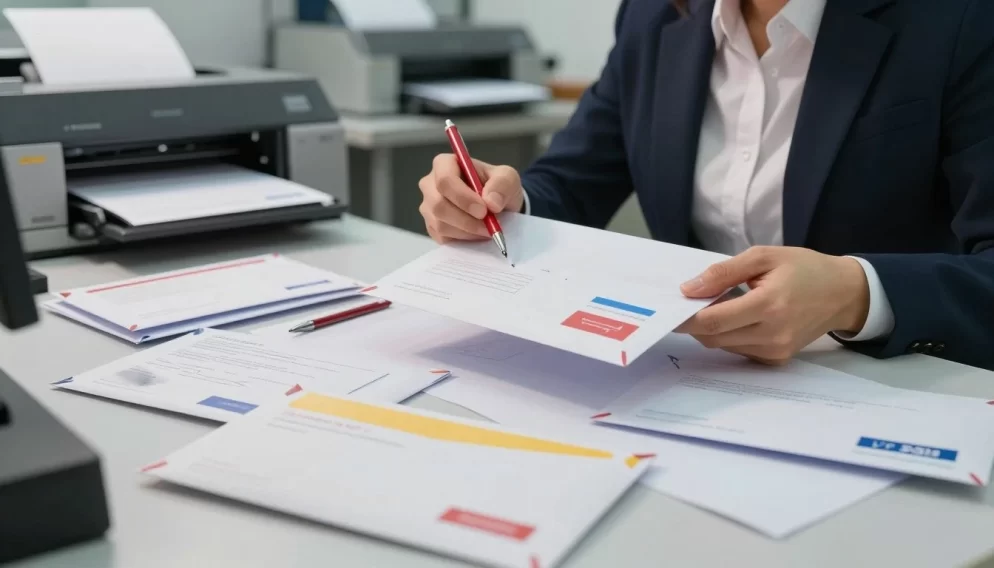
Envelope printing is key for business, marketing, and events. But, mistakes can cost a lot and hurt your reputation. Even small mistakes can lead to wasted materials, missed deadlines, and poor results.
Knowing the common pitfalls in envelope printing is vital. It covers design, technical specs, and material choices. This guide will show you how to avoid major mistakes, like design flaws, file issues, and wrong materials.
Key Takeaways
- Understand the importance of accurate envelope printing to avoid costly errors.
- Learn how design considerations and technical specifications impact printing results.
- Discover common mistakes in envelope printing, including design and material selection errors.
- Gain insights into the consequences of envelope printing errors, such as wasted materials and damaged reputation.
- Find out how to avoid common envelope printing mistakes with a systematic approach.
Why Envelope Printing Mistakes Cost More Than You Think
Envelope printing custo mistakes can cost a lot more than you might think. They affect your money and your business’s reputation. When envelopes are printed wrong, it can cause big problems for your business.
One big cost is the waste from wrong prints. This includes paper, ink, and envelopes that can’t be used. Staff time spent reprinting adds to the cost, and can even delay mail campaigns.
Printing mistakes can also raise your postal costs. If envelopes don’t meet USPS rules, you might get mail back or pay more for postage. For companies that send a lot of mail, these extra costs can add up fast.
Printing mistakes can also hurt your brand’s image. If envelopes look bad or are wrong, people might think less of your business. A small mistake in color or resolution can make a whole batch of envelopes useless.
Don’t forget about the time it takes to reprint envelopes. This can cost extra and mess up your marketing plans. Also, wasting materials is bad for the environment, which is important to both businesses and customers.
To avoid these problems, spend time getting things right before you print. This way, you can avoid the money, reputation, and environmental costs of printing mistakes to avoid. Your envelope printing will be professional and won’t break the bank.
Knowing the real cost of printing mistakes helps businesses avoid them. This way, your mail campaigns will run smoothly and be successful.
Design Layout Errors That Ruin Your Envelopes
Design layout errors can cause big problems with your envelopes. They can mess up how your envelopes look and work. A good design makes your brand look better and helps your mail get to the right place. Here, we’ll talk about common mistakes and how to fix them.
Incorrect Margin and Bleed Settings
Getting the right margins and bleed is key for envelope design. Margins are the safe areas for your design to avoid being cut off. Envelopes usually need margins of 0.25 to 0.5 inches. Bleed is the extra area that makes sure your design goes to the edge without white borders.
Wrong margins can cut off important parts of your design. Not enough bleed can cause white edges. To fix this, set margins right, include bleed, and use design software for guidelines.
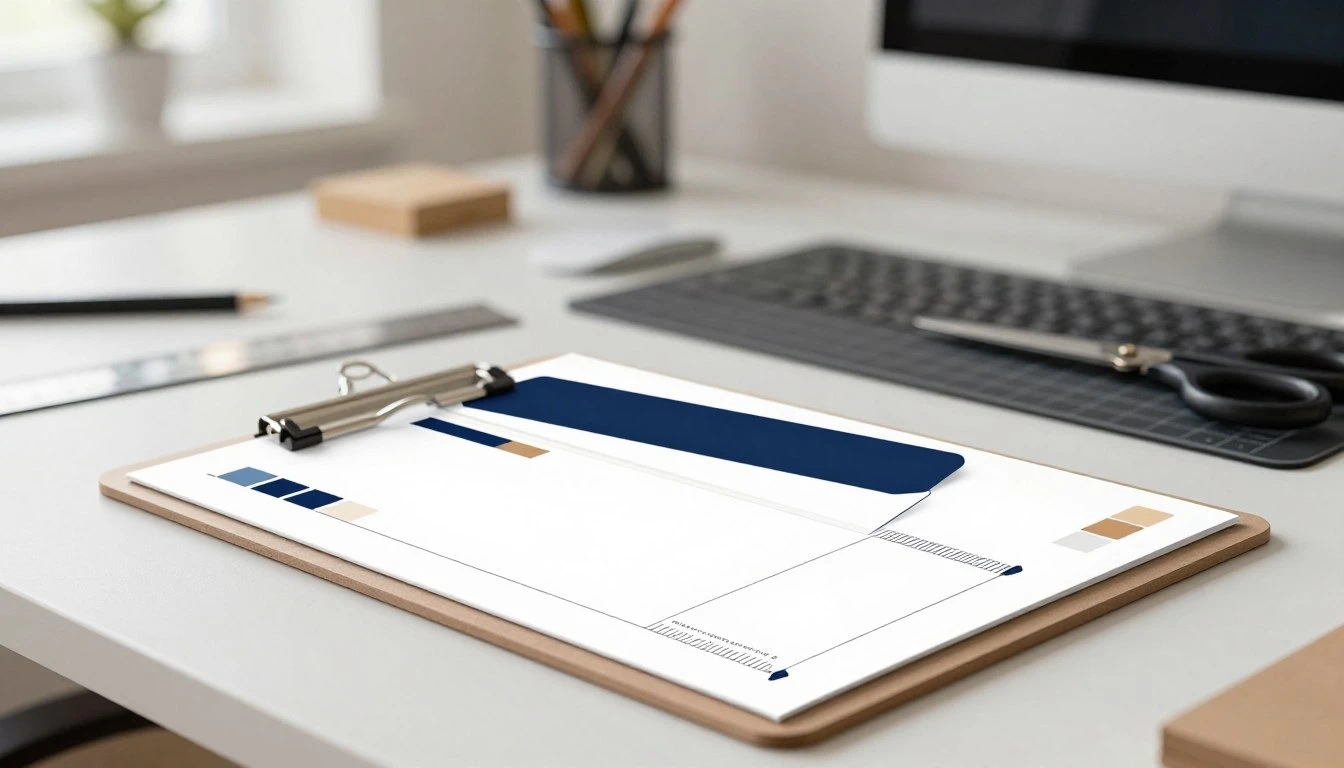
Choosing the right colors is important for envelopes. RGB is for digital screens, while CMYK is for printing. Using RGB for envelopes can make colors look different when printed.
To get colors right, design in CMYK. Avoid RGB files or convert them to CMYK before printing. Also, proof your designs on the paper they’ll be printed on to check colors.
Font Size and Readability Issues
Font size and readability are key for envelopes. Choosing the right font size makes your message clear. A good font size is 8-10 points for body text.
To make text easy to read:
- Pick fonts that are clear, even at small sizes
- Make sure text and background colors have good contrast
- Avoid fancy fonts for important info
Misaligned Graphics and Text Placement
Where you put graphics and text on your envelope matters a lot. Aligning and spacing correctly makes your design look good and follow postal rules.
To avoid bad placement:
- Use grids or guidelines for spacing and alignment
- Put important stuff like addresses and barcodes where postal rules say
- Don’t pack your design too tight with too many things
Technical File Preparation Mistakes
Even the most perfect envelopes can fail due to file prep errors. It’s key to prepare files right to get the look you want.
Using the Wrong File Format
Picking the right file format is crucial for printing envelopes. PDF, EPS, and AI files are best because they keep your design intact. JPEG or PNG can cause quality problems because of compression.
When saving files, think about color mode, resolution, and compression. Using CMYK color mode is important for print, as it shows colors correctly on paper.
Knowing vector and raster graphics is important. Vector graphics, like those from Adobe Illustrator, stay sharp no matter the size. Raster graphics, from Photoshop, depend on resolution and can get fuzzy when enlarged.
For envelopes, use vector graphics for logos and text to keep them sharp. Use raster graphics for images, but make sure they’re high-resolution to prevent quality drops.
Low Resolution Images and Logos
Low-res images and logos can ruin your envelope print quality. Prints need at least 300 DPI at actual size, while screens use 72 DPI. Always check and adjust image resolution to avoid blurriness.
To see an image’s resolution, check its properties or use image editing software. If it’s low, find or create a high-res version.
Missing or Unembedded Fonts
Fonts that are missing or not embedded can mess up your text. To fix this, embed fonts in PDFs or outline text in design files. Giving your printer font files is another option.
Make sure your fonts are embedded or outlined before printing. This simple check can prevent costly reprints and ensure your envelopes look right.
What Are Common Envelope Printing Mistakes with Address Formatting?
To make sure your mail gets to the right place, follow USPS address rules. It’s key for mail delivery, sticking to postal laws, and saving on postage. Proper address formatting is crucial.
Improper Address Positioning
Putting the address right on an envelope is vital for automated mail sorting. Wrong placement can cause delays or even stop mail from reaching its destination.
Recipient Address Placement Standards
The USPS says the recipient’s address should be on the lower half of the envelope. It should start 2.75 inches from the left and 1/2 inch from the bottom. The address must fit in the “read area” for automated sorting.
Key guidelines for recipient address placement:
- Position in the lower half of the envelope
- Start 2.75 inches from the left edge
- Place 1/2 inch from the bottom edge
- Use a clear, readable font
Return Address Common Errors
The return address is as important as the recipient’s. It goes in the upper left corner. Omitting or making it hard to read can lead to mail being thrown away.
Best practices for return addresses:
- Place in the upper left corner
- Ensure it’s legible and complete
- Use a font that’s easy to read
Barcode and Postal Requirements Violations
The USPS needs Intelligent Mail Barcodes (IMb) for bulk mail. These barcodes go in the lower right corner, with space around them. Breaking these rules can make mail more expensive.
Barcode placement guidelines:
- Place the IMb in the lower right area
- Maintain a clear zone around the barcode
- Use the correct barcode format
ZIP Code and Address Formatting Mistakes
Right address formatting means using ZIP+4 codes, USPS-approved abbreviations, and all-caps for machines. Mistakes can slow down or misdirect mail.
Tips for correct address formatting:
- Use ZIP+4 codes for precise delivery
- Employ USPS-approved abbreviations
- Format addresses in all capital letters
Material and Envelope Selection Errors
Choosing the right envelope material is crucial to avoid printing mistakes. The type of envelope you pick can affect printing and mailing. It’s important to consider how envelopes feed through your printer and how they’re handled by postal services.
Choosing the Right Envelope Type for Your Printer
Not all printers work with all envelopes. You need to pick an envelope that fits your printer’s needs. Check your printer’s specs for size, thickness, and feeding options.
Inkjet and laser printers have different envelope compatibility. Laser printers need envelopes that can handle heat. Some finishes might cause issues with both types. Always check your printer’s manual to ensure compatibility.
Ignoring Paper Weight and Finish Compatibility
The weight and finish of your envelope paper matter a lot in printing. Paper weight is measured in pounds, from 24 lb to 32 lb. It affects printing quality and how postal machines process them.
- Glossy or coated envelopes may not take ink well on inkjet printers.
- Textured envelopes can cause feeding problems in both inkjet and laser printers.
- The paper finish impacts ink absorption and drying time, preventing smudges.
Envelope Flap and Seal Type Considerations
The design of the envelope flap and seal type matters for printing and mailing. There are different flap styles and seal types, each with its own benefits.
Printing should happen before sealing, as some flap styles can mess with address placement. For big mailings, the right flap and seal can make a big difference in efficiency.
Printer Settings and Configuration Mistakes
Getting Your Printer Set Up Correctly
Getting your printer set up right is key to printing envelopes well. It saves you from mistakes and waste. Even with great designs and files, wrong settings can mess up your prints.
Incorrect Paper Size Settings
Choosing the wrong paper size is a common mistake. Make sure to pick the right envelope size in your printer settings. If it’s not listed, you’ll need to create a custom envelope printing size. It’s important to match the digital file with the real envelope size.
Step-by-step guide to setting custom envelope sizes:
- For Windows: Go to Control Panel > Devices and Printers > Printer Properties > Paper Size
- For Mac: Go to System Preferences > Printers & Scanners > Options & Supplies > Options > Paper Size
Automatic size detection often fails with envelopes. So, you need to set it manually. Make sure your printer settings match your envelope size to avoid scaling problems.
Wrong Print Orientation and Feed Direction
Print orientation and feed direction are key for envelope printing. The difference between portrait and landscape is important for different envelopes. Envelopes usually go through the printer flap-side or short-edge first.
To determine the correct feed direction for your printer:
- Check your printer’s documentation
- Look for indicators on the printer itself
- Run a test print with a blank envelope
Wrong orientation can cause jams and misprints. It can also damage your envelopes and printer.
Manual Feed vs Automatic Tray Selection
There are two ways to feed envelopes into your printer: manual or automatic tray. Manual feeding is more reliable for envelopes. It lets you insert and align them individually.
Tips for manual feeding:
- Insert envelopes at the correct angle
- Confirm printer recognition before printing
- Use the manual feed tray for better control
Automatic tray feeding works well for large runs on compatible printers. But, it needs proper setup and can jam if not done right.
Neglecting Printer-Specific Envelope Settings
Many printers have special envelope modes for better print quality. These settings adjust for envelope thickness, print speed, and temperature.
To access advanced printer settings:
- Look for “Envelope Mode” or “Special Media” options in your printer driver
- Adjust settings for envelope thickness to prevent ink smearing or inadequate toner fusion
- Modify print speed or temperature for optimal envelope printing
Using these settings can greatly improve your envelope printing. Always check your printer’s manual for specific envelope printing tips.
Skipping the Proofreading and Testing Process
Proofreading and testing are key steps in envelope printing. They make sure the final product is perfect and meets quality standards. Skipping these steps can lead to wasted time and money on reprints.
Not Running Test Prints
Test prints are essential in envelope printing. They are printed on the actual stock with the same settings as the final product. It’s best to print at least three test envelopes for consistency.
- Verify correct alignment of all elements
- Check for proper color reproduction
- Ensure readable text and correctly positioned addresses
- Inspect for smudging or streaking
Looking at test envelopes under different lights and from various distances can spot issues. These might include color changes, resolution problems, or margin errors.
Failing to Check for Typos and Content Errors
Typos and content errors can harm your envelope’s professionalism. Spell-checkers can miss some mistakes, especially in names, addresses, or numbers. It’s crucial to proofread carefully.
- Read content backward to catch spelling errors
- Verify all names against source documents
- Confirm address accuracy and completeness
- Check phone numbers and ZIP codes digit by digit
- Have multiple people review content to catch different errors
Common mistakes include wrong numbers in addresses, misspelled names, incorrect postal codes, and outdated info.
Ignoring Print Quality Preview
Using preview functions in printer drivers, PDFs, and design software can catch errors early. When checking previews, look for:
- Proper page orientation
- Correct scaling without cropping
- Accurate color representation within preview limitations
- Proper alignment of all elements
While previews have their limits, they are vital for a final quality check.
Pre-Flight Checklist Before You Print
Professional printers use pre-flight checklists for quality. Now, you can too. A detailed pre-flight checklist is key to a flawless envelope printing project.
Design Verification
- Make sure all margins are at least 0.25-0.5 inches.
- Check if bleed settings are correct.
- All colors should be in CMYK mode, not RGB.
- Fonts should be at least 8-10 point sizes.
- Graphics and text must be aligned properly.
File Preparation
- Ensure the file is in the right format (PDF, EPS, or AI).
- Images should be at least 300 DPI resolution.
- All fonts should be embedded or outlined.
- File dimensions must match the envelope size exactly.
- Use vector graphics for logos and key elements.
Address Formatting Checks
- Check if the recipient address is in the right place.
- The return address should be in the upper left corner.
- All addresses must have the correct ZIP+4 codes.
- Use USPS-approved abbreviations.
- Verify barcode placement and clear zones if needed.
| Preparation Item | Description |
|---|---|
| Envelope Type | Make sure the envelope type is compatible with your printer. |
| Paper Weight and Finish | Check if the paper weight and finish are right for your printing method. |
| Envelope Quantity | Ensure you have enough envelopes, with extras for testing. |
| Printer Settings | Set your printer to the correct paper size. |
Testing and Quality Control
- Print at least three test envelopes on actual stock.
- Check the test prints for any alignment or quality issues.
- Proofread all content with multiple reviewers.
- Verify the colors match your expectations.
- Look for smudging or streaking.
- Make sure the prints are completely dry before handling.
Conclusion
Envelope printing has many steps, each with its own challenges. Knowing common mistakes helps make professional results. Issues like design errors, file problems, and wrong address formats can cost a lot and harm your image.
This guide helps avoid these mistakes. It’s all about being ready. Choose the right envelope, set up your printer right, and check your work. This way, you get top-notch prints.
Always check your work before printing. This makes sure your envelopes look great. It works for small prints at home or big orders from a commercial printer.
Focus on quality control and know what you need for printing envelopes. This way, you avoid mistakes and get great results. It saves time, money, and keeps your reputation strong.

Leave a Reply