
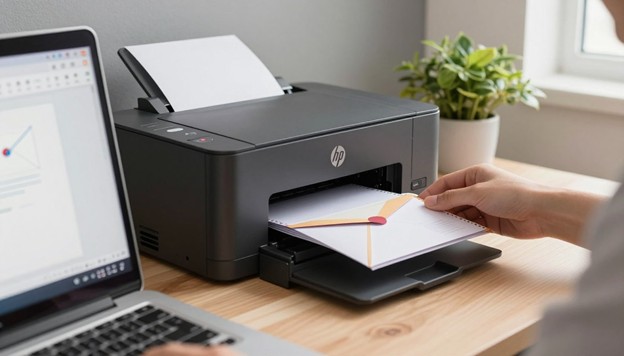
Learning how to print out envelopes can save time for one letter or a full mailing list. Microsoft Word handles single envelopes, while an Excel address list helps Word print batches through mail merge.
To learn how to print on an envelope with hp printer, start with the basics. Match the envelope size in Word with your printer settings. Load it in the direction your HP printer requires, then test the print for address placement.
Key Takeaways
- Use Word to print a single addressed envelope.
- Use an Excel list with Word mail merge for larger batches.
- Match the envelope size in Word and the printer settings.
- Check your HP printer’s feed direction before loading envelopes.
- Make a test print to catch alignment issues before printing the batch.
Can You Print Directly Onto Envelopes With an HP Printer?
Can you print directly onto envelopes? Many HP inkjet and laser printers can print addresses on supported envelopes, so you can skip labels.
Before loading a stack, check your printer’s specifications for envelope sizes and tray options. Capacity varies by model, and some trays hold only a few envelopes.
For reliable HP envelope printing, follow the loading diagram on your printer or in its manual. It shows which way the flap should face and which edge goes in first. Match those directions to your print settings to keep addresses straight and prevent jams.
What You Need Before Printing Envelopes at Home
Wondering how to print your own envelopes at home? Before buying a box, check your HP printer’s media requirements.
Check Your HP Printer’s Supported Envelope Sizes
Look up your printer model’s supported envelope sizes in its specifications. A U.S. No. 10 envelope measures 4 1/8 by 9 1/2 inches, but the No. 10 print setting depends on your printer and software.
Choose Envelopes That Work With Your Printer
Choose flat, undamaged envelopes that meet your printer’s media requirements. Thick seams, metal clasps, and some window materials may cause feeding or printing problems.
Prepare the delivery and return addresses. Keep a plain sheet of paper nearby for a test print before loading an envelope.
How to Print Out Envelopes: Set Up Your HP Printer
A careful HP printer envelope setup begins with the correct paper size and tray loading. These checks keep the address straight and help prevent bent corners.
Select the Correct Envelope Size in Print Settings
To learn how to print out envelopes, choose the envelope’s actual size in your document. Select that same size in the HP print menu. For a standard business envelope, choose No. 10 instead of Letter, and select Envelope as the media type.
Check the Feed Direction Before Printing
Before printing, check the diagram beside the tray to learn how the envelope should feed. Your model’s manual shows which side faces the print mechanism and where the flap points. This helps prevent the address from printing backward.
Slide the paper guides against the envelope edges without bending them. Feed direction varies by HP model, so check the guide for your printer.
How to Print an Envelope in Word
In desktop Microsoft Word, the Envelopes tool puts address and layout controls together. Learn how to print an envelope in word with your HP printer.
Enter the Delivery and Return Addresses
Open the Mailings tab and select Envelopes. Type the recipient’s full mailing address in the Delivery address box, then add your address in the Return address box. Check both for missing apartment numbers or ZIP code errors.
Set the Envelope Size and Feed Method
Select Options and choose the size printed on your envelope package. Open Printing Options and compare its feed diagram with your envelope’s position in your HP printer’s tray.
Make sure the Word envelope settings match the size selected in your printer settings. Menu names and available choices may vary by Word version and operating system.
Preview and Print a Single Envelope
Check the preview for address placement, then select Print. Print one envelope first to confirm the text lands in the right spot before loading more.
Use a Free Envelope Printing Template in Word
A template keeps address blocks in place for repeat mailings. Before choosing one, make sure its page size matches the envelopes you plan to print.
Find a Template That Matches Your Envelope Size
When searching for “free envelope printing template word,” compare its listed dimensions with your envelopes. A #10 envelope, for example, measures 4⅛ by 9½ inches. Open it in Word and check its page size before editing.
Customize and Save the Layout for Future Mailings
Replace the sample text with the delivery and return addresses. Keep both address blocks within the printable area listed for your HP printer. Text near an edge may be cut off.
Save an editable copy of the Word envelope template for your next mailing. Before each print run, confirm the page size, feed direction, and printer settings. Do this even if the layout has not changed.
How to Print Envelopes in Word From Excel With Mail Merge
Mail merge lets Word print a stack of envelopes from one Excel address list. To learn how to print envelopes in word from excel, check the list before setting up the print job. For an Excel envelope mail merge, fix missed ZIP Codes in Excel before printing.
Prepare Names and Addresses in an Excel Spreadsheet
In the first row, enter First Name, Last Name, Street, City, State, and ZIP Code. Put one recipient on each row below it. Format ZIP Code cells as text so leading zeros stay in place.
Connect the Excel List to Word Mail Merge
In desktop Word, open Mailings, choose Start Mail Merge, and select Envelopes. Then choose Select Recipients and Use an Existing List.
Choose the Excel workbook and worksheet that holds your addresses. If Word cannot open the file, close it in Excel and try again.
Insert Address Fields and Preview Each Envelope
Place the name, street, city, state, and ZIP Code fields in the delivery address area. Select Preview Results and click through several records. Check that every address is complete and the fields appear in the right order.
Print the Merged Envelopes With Your HP Printer
Choose Finish & Merge to print. Before printing the full batch, confirm your HP printer, envelope size, feed direction, and tray. Print one envelope first to check its placement, then print the rest.
How to Print on Envelopes With an HP LaserJet
LaserJet models feed envelopes in different ways. If you searched for how to print on envelopes hp laserjet, check your model’s manual before loading a stack.
Load Envelopes in the Recommended Tray
The manual shows the HP LaserJet envelope tray, loading direction, and stack limit. Some models use a multipurpose tray instead of the main paper tray. Follow the tray diagram so the address prints on the correct side.
Choose Envelope and Paper-Type Settings
In Word or the printer driver, choose the envelope’s exact size and select Envelope as the media type. Make sure these settings match the envelopes you loaded.
Use envelopes rated for laser printers. The fuser uses heat and pressure, so avoid exposed adhesive. Also avoid materials that cannot withstand the conditions listed in your printer’s manual.
How to Print on Envelopes With an HP DeskJet 2700
To learn how to print on envelopes hp deskjet 2700, start with the tray. Make sure Word uses the same envelope size you loaded.
Load Envelopes in the Input Tray
For HP DeskJet 2700 envelope loading, raise the input tray and move the paper-width guide outward. Place supported envelopes against the right side, print side up, with the flaps on the left and facing down. Slide the stack in until it stops, then move the guide against it without bending the envelopes.
Match Word’s Print Settings to the Loaded Envelopes
In Word, choose the size you loaded, such as a No. 10 envelope, and check the feed preview. Select that same size in the HP print settings and choose an envelope media type if offered. Print one envelope to check the address position before printing the rest.
How to Print in a Mailing Envelope: Address and Postage Placement
Wondering how to print in a mailing envelope? Check envelope address placement before you print. Clear space around each address helps USPS equipment read and sort mail.
Position the Delivery and Return Addresses
Place the delivery address near the center of the envelope. Put the return address in the upper left corner, with a clear gap between them.
Keep each line easy to read. On the last line, place the city, two-letter state abbreviation, and ZIP Code together.
Leave Space for Postage and Postal Barcodes
Leave the upper right corner clear for a stamp or printed postage. Avoid artwork and extra text along the lower edge and near the lower right corner. USPS equipment may use that space for barcodes or processing marks.
How to Print Your Own Envelopes at Home Without Smudges
Wondering how to print your own envelopes at home? Start with clean, flat envelopes supported by your HP printer. Choose the envelope media type in print settings instead of plain-paper settings, and load a small stack so envelopes feed without rubbing together.
To prevent envelope ink smudges on an inkjet printer, let each envelope dry before stacking or touching its address. For a laser printer, ensure the envelope material and adhesive can withstand the model’s fusing process. Keep the flaps flat, and avoid envelopes with exposed glue.
How Do I Print a PDF Onto an Envelope?
To answer “how do i print a pdf onto an envelope?”, start with a PDF that fits the envelope. Use an HP printer to print PDF on envelope stock. Changing only the paper size will not place a letter-size PDF address correctly.
Set the PDF Page Size to Match the Envelope
Set the page size before exporting the PDF. For a standard No. 10 envelope, use 9.5 by 4.125 inches. In the PDF print dialog, choose that envelope size and check the address position in the preview.
Check Scaling and Orientation Before Printing
If the PDF already matches the envelope, choose Actual Size or 100% scaling instead of Fit. Check the orientation in the preview, then load one envelope in the feed direction shown on your HP printer. Print that envelope first to check its placement.
Print an Envelope From iPhone Using an HP Printer
To print envelope from iphone, send a saved envelope PDF to a compatible HP printer. Before starting, load one envelope as shown in your printer’s instructions.
Print With AirPrint When Available
Connect your iPhone and AirPrint-enabled HP printer to the same accessible network. Open the PDF, tap Share or Print, then select your printer.
For an AirPrint HP envelope print, check the preview and choose the right paper size, if shown. The controls depend on the app and printer.
Use the HP App to Check Printer Settings
The HP app can help you find your printer and review its available print settings. Features vary by printer and app version.
Check the envelope’s feed direction, then print one copy first.
Envelope Print Online: When to Use a Browser-Based Tool
When Word is unavailable or you need only a few envelopes, an envelope print online tool saves time. A browser-based envelope template lets you enter an address and prepare a page without installing software.
Choose a size that matches the envelope loaded in your HP printer, such as a No. 10 envelope. Check the browser print preview for margins, scaling, and orientation. If the page matches the envelope, print at actual size instead of fitting it to the paper.
Before entering a recipient’s address, review the website’s privacy practices. Check whether it stores or shares address details, especially for business mail.
Test Print and Fix Misaligned Envelope Addresses
A quick test on plain paper can save an envelope and show where the address will appear.
Make a Paper Test Print Before Loading Envelopes
When learning how to print out envelopes, print the layout on plain paper first. Hold the sheet against an envelope to check both address blocks and the space for postage.
Adjust Margins, Feed Direction, and Print Scaling
If the text is upside down or on the wrong side, check your HP printer’s feed diagram. Reload the envelope as shown, then make another paper test.
To fix envelope address alignment, check that Word and the printer use the same envelope size. Check this when text shifts or gets cut off.
Review Word’s address positions or template margins, and turn off scaling if it was not intended. Change one setting at a time, then test again.
Troubleshoot HP Envelope Printing Problems
To solve HP envelope printing problems, inspect the paper path and print settings before starting another batch.
Clear Envelope Jams and Feeding Issues
If an envelope feed jam occurs, stop the print job. Follow your HP model’s instructions to open the access area. Remove the envelope gently to prevent tearing.
Check for bent corners and remove extra envelopes from the tray. Set the paper guides against the stack without squeezing it.
Fix Faded, Smudged, or Missing Address Text
For faded or missing text, check ink or toner levels and run recommended print-quality maintenance. Before printing again, make sure the address appears in print preview.
If ink smears, check that the envelopes suit your printer and select the correct paper type. Let inkjet prints dry before stacking them.
Conclusion
To learn how to print on an envelope with HP printer models, match the envelope size in your document. Match it in the print settings, too. Follow your model’s loading guide for the correct tray and feed direction.
To learn how to print an envelope in Word, use the Envelopes feature for one address. For a mailing list, use Word mail merge with addresses from Excel.
Whether you print from a PDF, an iPhone, or a browser tool, check the address layout. Leave room for postage, and test one envelope before printing the full batch.
If an address shifts, smudges, or looks faint, check the margins, paper type, and loading position. A small fix can save envelopes and keep your mail easy to read.
FAQ
What do I need to print my own envelopes at home?
Use flat, undamaged envelopes that meet your printer’s media requirements. Prepare the addresses and keep plain paper nearby for a test print. Avoid envelopes with clasps, thick seams, or unsupported window materials.
How do I choose the right envelope size in Word and my HP printer?
Match the physical envelope size in Word and the HP print settings. A U.S. No. 10 envelope measures 4 1/8 by 9 1/2 inches. Available sizes depend on your printer and software.
Where can I find a free envelope printing template for Word?
Find a Word template sized for your envelope. Replace its sample text, keep both addresses within the printable area, and save an editable copy. Confirm the page size before each print run.
Why should ZIP Codes be stored as text in Excel?
Text formatting preserves leading zeros in ZIP Codes. Check the address preview in Word before printing. Make sure every code appears as intended.
Where should addresses and postage go on a mailing envelope?
For U.S. mail, place the delivery address near the center and the return address in the upper left. Leave the upper right clear for postage, and avoid text where postal processing marks may appear. Put the city, two-letter state abbreviation, and ZIP Code on the last address line.
Can I print an envelope from an iPhone using an HP printer?
If your HP printer supports AirPrint, connect it and your iPhone to the same accessible network. Open the envelope document or PDF, tap Share or Print, and select the printer. Paper-size controls vary by app and printer, so check the preview and test one envelope. The HP app may offer more settings.
Is an online envelope printing tool a good alternative to Word?
A browser-based tool can work well for a few envelopes. Choose the correct size, inspect margins and orientation in print preview, and print at actual size when the generated page matches your envelope. Review the site’s privacy practices before entering addresses.
How can I fix an address that prints in the wrong place?
Print the layout on plain paper and hold it against an envelope. If the address is upside down or on the wrong side, check your printer’s feed diagram. If shifted or clipped, match document and printer sizes, review margins, disable scaling, and change settings one at a time.
What should I do if envelopes jam or the address smudges?
For a jam, stop printing and follow your HP model’s removal instructions. Check for bent corners, an overfilled tray, and guides that are too tight or loose. For smudges, confirm the envelopes and media settings suit your printer; let inkjet prints dry before stacking them.

Leave a Reply